

POS Terminal System
The AcountPay POS terminal makes accepting payments simple with a 3-step process that works on any device.How It Works
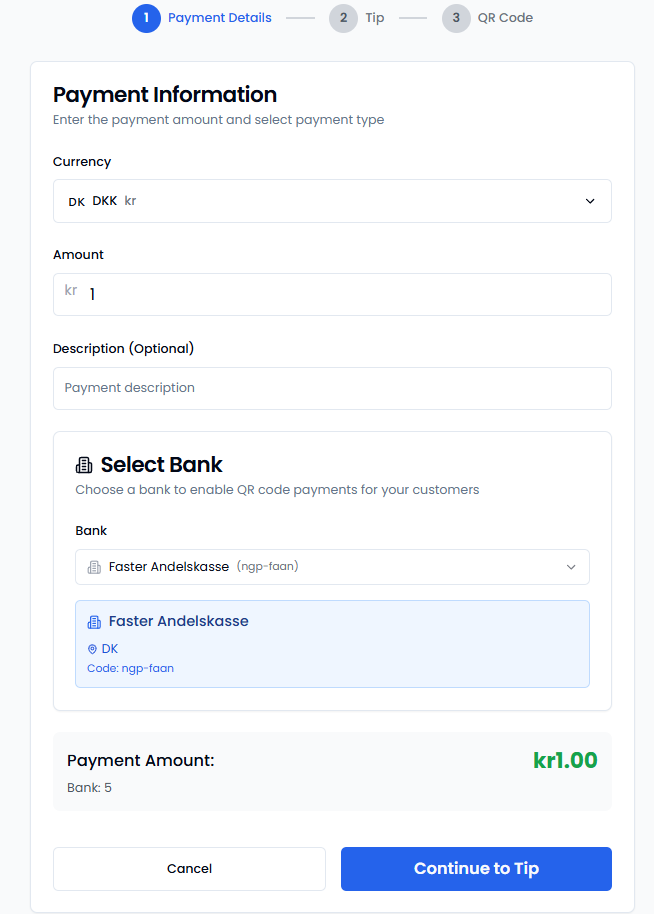
Step 1: Payment Details
- Enter the payment amount
- Ask the customer which bank they use
- Select their bank from the dropdown list
- Add optional description
Step 2: Tips (Optional)
If you have tips enabled:- Customer can add 10%, 15%, 20%, or 25%
- Or enter a custom tip amount
- Or skip the tip entirely
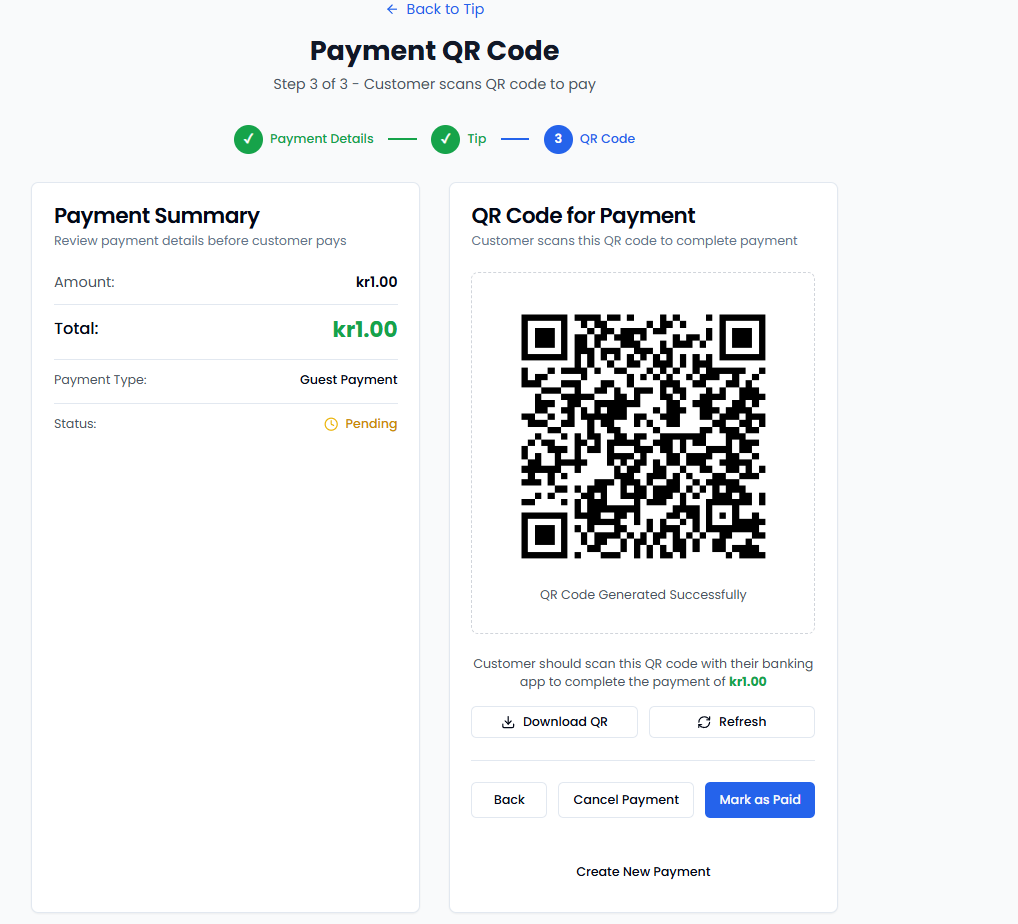
Step 3: QR Code Generation
- System generates a secure QR code
- Show the code to your customer
- They scan with their phone camera or banking app
- Payment processes automatically
Payment Status
You’ll see real-time updates:- Pending: QR code created, waiting for customer
- Scanned: Customer has scanned the code
- Processing: Payment being processed
- Completed: Payment successful
- Failed: Payment was declined
Transaction Management
View Your Transactions
Access your complete payment history with:- Date and time filtering
- Transaction amounts and status
- Customer bank information
- Success/failure details
Export to CSV
Two Ways to Export:- From POS Terminal: Navigate to Transactions → Export to CSV
- From Dashboard: Visit merchant.acountpay.com → Transactions → Export
- Accounting software import
- Tax preparation
- Business analysis
- Record keeping
Troubleshooting
Common Issues
Wrong Bank Selected:- If customer realizes wrong bank was chosen, generate a new QR code
- Cancel the current transaction and start over
- Double-check bank selection before generating QR code
- Check internet connection
- Verify merchant account status
- Ensure correct bank is selected
- Try refreshing the session
- Wait for timeout (usually 5 minutes)
- Check with customer’s bank
- Generate new QR code for retry
- Contact support if persistent
- Ensure QR code is clearly displayed
- Check lighting conditions
- Try refreshing/regenerating code
- Verify customer’s banking app supports QR payments
Error Codes
| Code | Description | Resolution |
|---|---|---|
POS001 | Invalid amount format | Check amount contains only numbers and decimal |
POS002 | Bank not available | Select different bank or try later |
POS003 | Payment timeout | Generate new QR code |
POS004 | Network error | Check internet connection |
Always confirm the customer’s bank selection before generating the QR code to ensure a smooth payment experience. The bank choice determines which login portal the customer will see.