

Payment Buttons & Badges
Enhance your website’s user experience and build trust with customers by integrating AcountPay payment buttons and badges. These visual elements help customers identify that your site accepts AcountPay payments and guide them through the checkout process.Why Use Payment Buttons and Badges?
- Build Trust: Display AcountPay acceptance to reassure customers
- Improve Conversion: Clear payment options reduce checkout abandonment
- Professional Appearance: Consistent branding across your payment flow
- Easy Integration: Simple HTML/CSS implementation
Generate Custom Buttons and Badges
Visit our Button Generator to create and download custom AcountPay payment buttons and badges for your website. The generator provides:- Customizable Designs: Choose colors, sizes, and styles
- Multiple Formats: Download as HTML, CSS, or image files
- Responsive Options: Mobile-friendly button designs
- Brand Consistency: Match your website’s design language
How to Use the Button Generator
- Visit the Generator: Go to https://button.acountpay.com
- Select Button Type: Choose from payment buttons, checkout buttons, or badges
- Customize Appearance: Adjust colors, text, and sizing
- Generate Code: Get the HTML/CSS code or download images
- Integrate: Add the code to your website
Button Types
Payment Buttons
Payment buttons initiate the AcountPay checkout process. Place them prominently on product pages, cart pages, or checkout flows.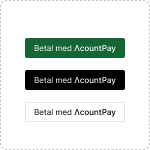
Checkout Page Integration
For full checkout pages, use our checkout button to provide a seamless payment experience.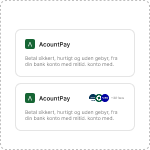
On-Site Badges
Display AcountPay badges throughout your site to show payment acceptance and build credibility.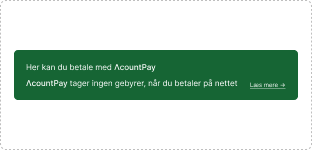
Implementation Examples
HTML Button Integration
Badge Placement
Best Practices for Button Placement
Strategic Positioning
- Product Pages: Place payment buttons near “Buy Now” or “Add to Cart” buttons
- Cart Page: Include payment options in the cart summary
- Checkout Flow: Use checkout-specific buttons on payment selection pages
- Footer: Display acceptance badges in website footers
Design Considerations
- Consistent Styling: Match button designs with your site’s theme
- Mobile Responsive: Ensure buttons work well on all device sizes
- Clear Labeling: Use descriptive text like “Pay with AcountPay”
- Trust Signals: Include security badges alongside payment options
User Experience Tips
- Loading States: Show loading indicators during payment processing
- Error Handling: Provide clear error messages for failed integrations
- Accessibility: Ensure buttons are keyboard navigable and screen reader friendly
- Testing: Test button functionality across different browsers and devices
On-Site Messaging
Let your customers know that a payment is accepted by displaying AcountPay on-site messages or badges. These elements:- Increase Confidence: Customers feel more secure knowing payment options are available
- Reduce Friction: Clear payment indicators streamline the checkout process
- Build Credibility: Professional badges enhance your site’s trustworthiness
- Improve Conversion: Familiar payment logos can increase purchase completion rates